Using ForgePoint
Learn how to navigate the ForgePoint interface and perform common tasks with your vehicle.
The ForgePoint Interface
ForgePoint features a clean, intuitive interface designed to streamline your diagnostic and programming workflow. The main window is divided into several key areas that give you quick access to all essential functions.
Logging In
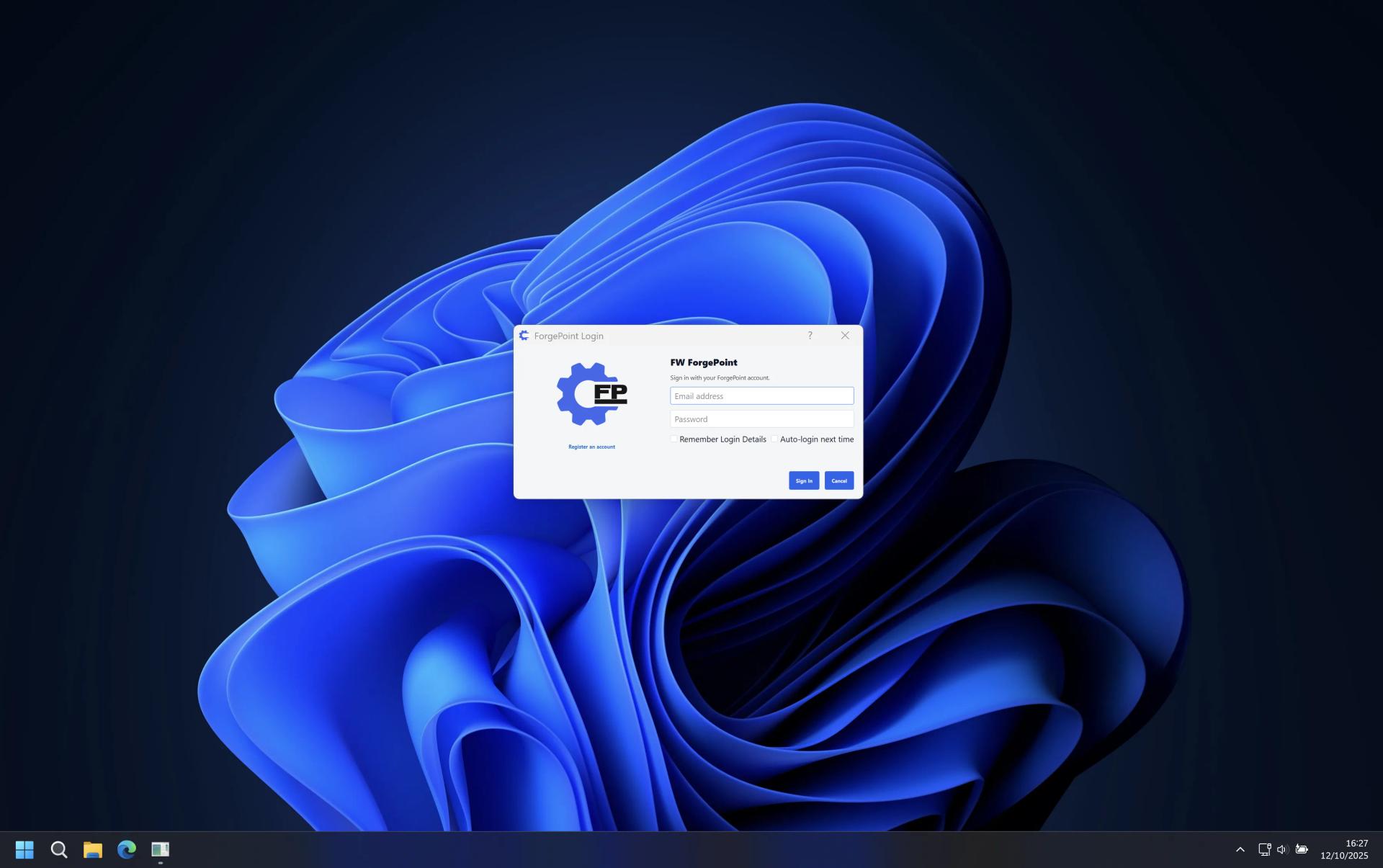
ForgePoint requires an account with a valid email address in order to work. ForgePoint will work with an account with no credits, but functionality will be limited. An account can be created on this website. You can also remember the log in details and activate auto log in for convenience.
Understanding the Main Interface
On the left side, you have 2 side bars. One that contains all available modules to program, and another for more advanced, less needed features. The main area is where you will perform most of your work, including vehicle connection, module programming, and feature activation. The botom area is where you can select which device to use for connection to the car, connect to the device and to see logs for actions performed and potential errors.
Main App
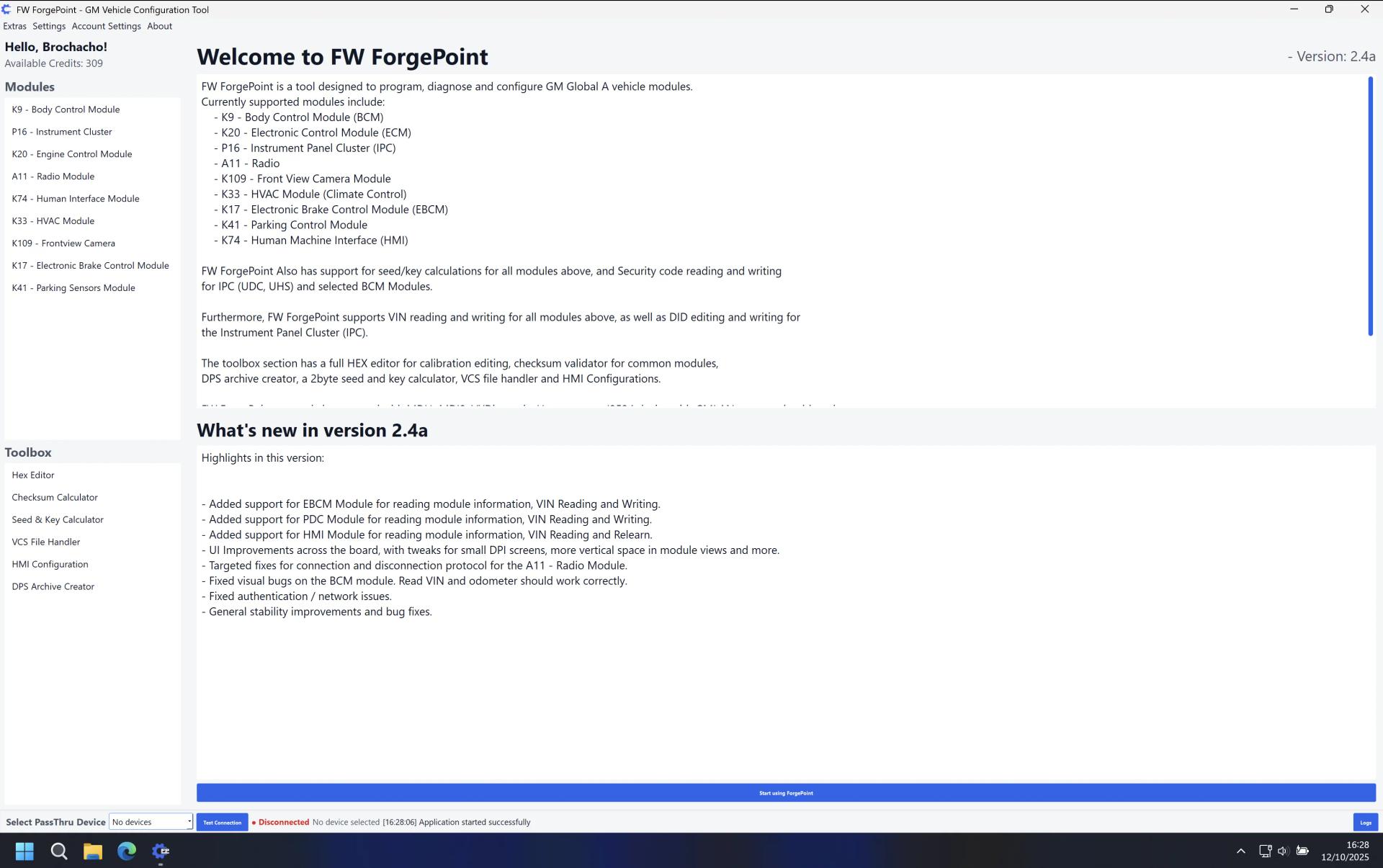
The welcome screen will only appear for the first launch and when ForgePoint updates. You are also able to select a dark theme for the application if you prefer that over the default light theme.
Modules Screen
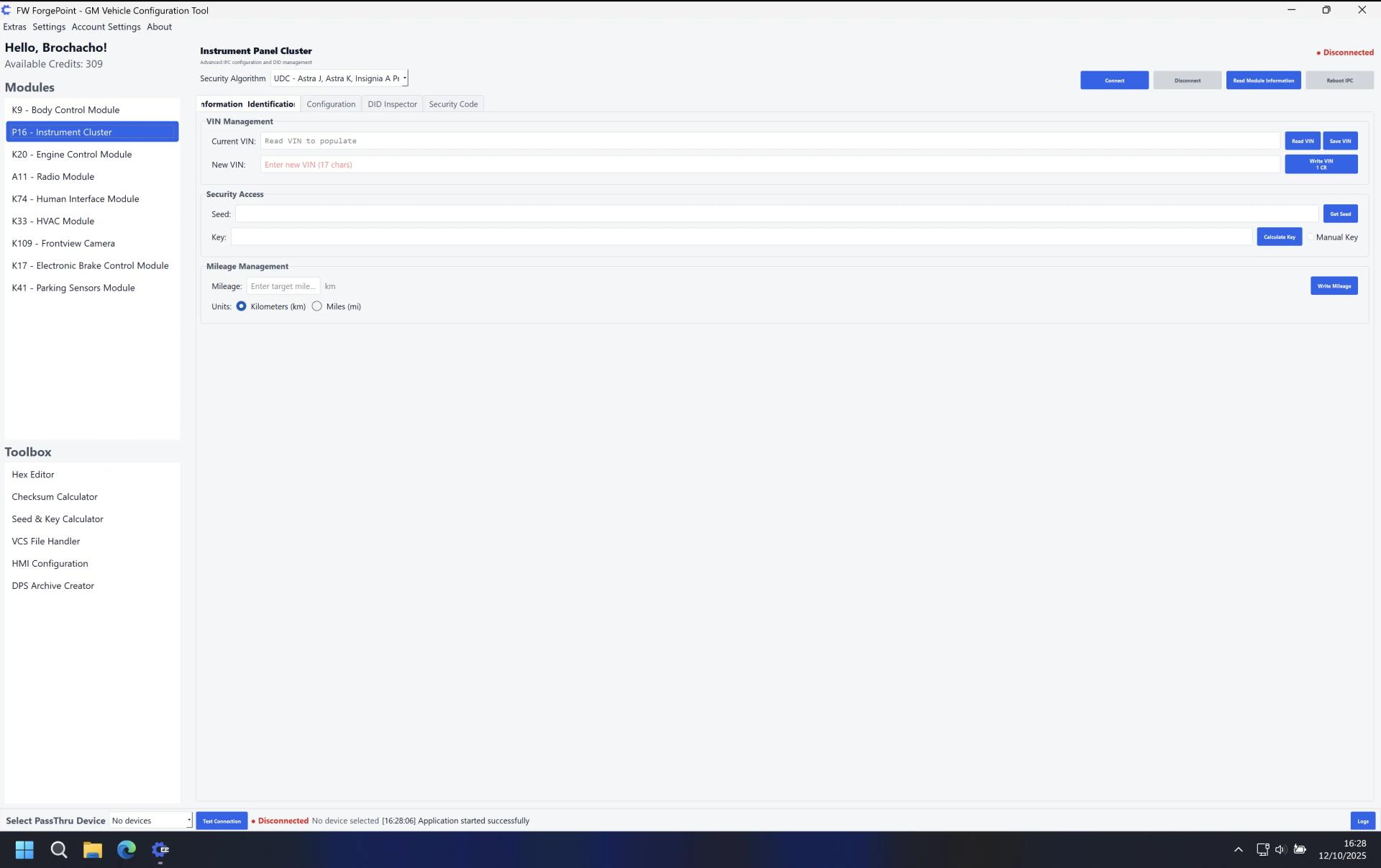
Most modules screens will look similar to this. All modules in ForgePoint have the ability to write or reset the VIN of the module. Modules such as the IPC allow for further configuration, most notably DID configurations. The BCM and IPC modules also feature a security code tab which allows the user to read and write the security code of the module in order to match the vehicle.
Step 3: Vehicle Identification
VIN Reading Screen
Once connected, ForgePoint will read the vehicle's VIN and automatically identify the make, model, and year. This information is used to load the correct module definitions and features.
Module Selection
After connecting to your vehicle, you'll see a list of available modules. ForgePoint displays all detected ECUs with their current status, part numbers, and software versions.
Module List View
Module List Screenshot
The module list displays all available ECUs in your vehicle with detailed information including module name, part number, and current calibration version.
Important
Always verify the module part numbers before programming. Using incorrect calibration files can cause module damage or vehicle malfunction.
Reading Module Data
Before making any changes, it's recommended to read and save the current module configuration. This creates a backup that can be restored if needed.
Reading Process
Reading Progress Screen
Select the module you want to read from the module list
Click the "Read" button to retrieve the current configuration
Save the file to a safe location on your computer